

- Windows 10’s Robocopy incorporates a powerful multi-threaded capability available through the
/MTswitch. While the system defaults to utilizing 8 threads for file transfers, users can adjust this number to as high as 128, significantly speeding up the copying process. - For instance, executing the command
robocopy C:\source D:\destination /E /MT:32deploys 32 threads, markedly enhancing transfer speeds compared to the conventional File Explorer method.
LAST UPDATED: August 19, 2025: When you need to transfer files to another drive in Windows 10, many users resort to the traditional method of selecting, copying, and pasting. While effective, this technique may lead to extended transfer times, especially when handling numerous files.
A solution embraced by tech-savvy users is Robocopy (Robust File Copy), a command-line utility integrated into Windows 10 that facilitates rapid data transfer to a different location, either on another drive or via network connections. A notable advantage of Robocopy is its multi-threaded functionality, allowing for the simultaneous copying of multiple files, unlike the sequential process in File Explorer.
This guide will walk you through the steps to utilize Robocopy’s multi-threaded features effectively, expediting your file and folder transfers on Windows 10.
Utilizing Robocopy’s Multi-Threaded Feature in Windows 10
To leverage the multi-threaded feature of Robocopy for file and folder transfers on Windows 10, follow these instructions:
-
Launch the Start menu on your Windows 10 device.
-
Type Command Prompt in the search bar, right-click on the result, and select Run as administrator.
-
Enter the command below to initiate the file and folder transfer, then press Enter:
robocopy C:\source\folder\path\ D:\destination\folder\path\ /S /E /Z /ZB /R:5 /W:5 /TBD /NP /V /MT:32In this command, remember to customize the source and destination paths according to your needs. For example, to copy data from drive C to drive D using 32 threads, use:
robocopy C:\Users\admin\Documents D:\Users\admin\Documents /S /E /Z /ZB /R:5 /W:5 /TBD /NP /V /MT:32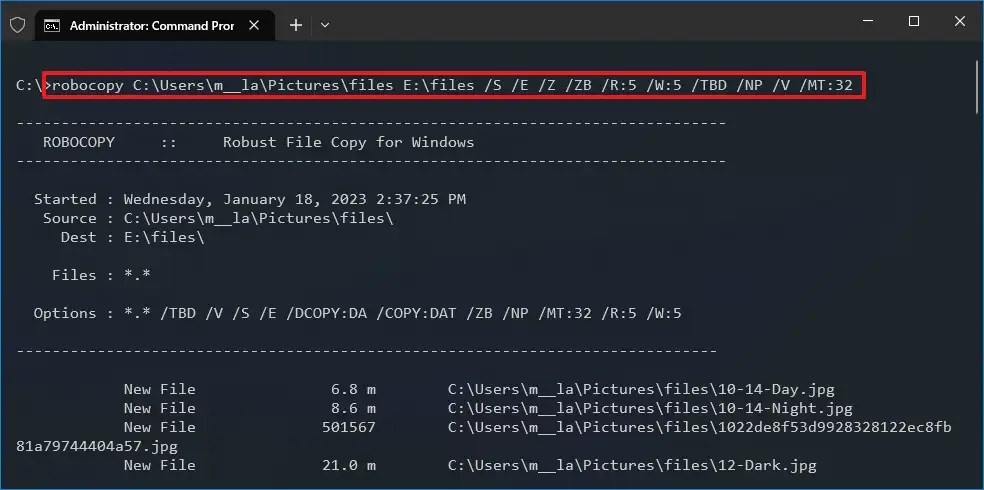
Robocopy in action with multi-threaded option
Understanding Robocopy Switches
Robocopy is packed with features, and in the command mentioned earlier, several important switches are employed for efficient and reliable copying. Here’s a breakdown of these switches:
-
/S: Copies subdirectories, omitting empty ones. -
/E: Copies all subdirectories, including the empty ones. -
/Z: Copies files in a restartable mode, ensuring reliable transfers. -
/ZB: Switches to backup mode if access is denied during the copy process. -
/R:5: Attempts up to 5 retries in case of a failure. -
/W:5: Pauses for 5 seconds before a retry. -
/TBD: Waits for a share name to become available. -
/NP: Suppresses the display of the progress percentage. -
/V: Displays skipped files in verbose mode. -
/MT:32: Activates multi-threaded copying with a designated number of threads (the default is 8 and can go up to 128).
The foremost switch to note in the command is /MT, which enables the multi-threaded capability. The default setting for this parameter is 8, resulting in the simultaneous copying of eight files. However, Robocopy allows users to utilize between 1 and 128 threads.
In this example, 32 threads are utilized, though you may opt for a higher number. Bear in mind that increased thread usage may lead to higher resource consumption and could adversely affect performance on older systems. Therefore, it is advisable to conduct tests before executing commands with a larger number of threads.
Upon successfully completing these steps, you will find that file transfers occur at a much quicker pace compared to traditional tools, whether you are copying files to another drive or transferring data over a network.
It’s worth noting that Robocopy isn’t limited to transferring files to and from local drives; it is also an excellent option for migrating files across networked systems.
Update August 19, 2025: This guide has been revised to maintain accuracy and reflect any procedural changes.
Related Articles:

How to Update Secure Boot Certificates on Windows 11 as Microsoft Replaces Expiring Ones – Complete Guide
17:42
Windows 11 26H1 KB5073097 (Build 28020.1371) Fixes Start Menu and File Explorer Issues (Canary)
12:43
Complete Guide to Uninstalling Apps with Revo Uninstaller on Windows 11
16:43
Leave a Reply