

How to Remove Your Windows Hello PIN on Windows 11: A Step-by-Step Guide
With the advancements in security through Windows Hello on Windows 11, many users find themselves needing to remove their PIN for various reasons, such as preferring to use a traditional password. This guide will take you through the essential steps to do just that, troubleshoot common issues, and offer tips to navigate the nuances of Windows Hello and Microsoft accounts.
Why You Might Want to Remove Your Windows Hello PIN
Windows Hello allows users to sign in using a PIN, which is designed to be easier to remember while enhancing security since it’s only stored locally. However, there are valid reasons to switch back to using a password instead. Perhaps you’re transitioning to a password-only login, or you’ve encountered some confusion regarding your security settings. Whatever the reason, this guide will help you through the process.
Table of Contents
1. How to Remove PIN on Windows 11
Follow these steps to successfully remove the PIN associated with your Windows 11 account:
-
Launch the Settings app from the Start menu or by using the shortcut
Windows + I. -
Navigate to the Accounts section.
-
Select Sign-in options from the sidebar.
-
Find the option labeled “PIN (Windows Hello)” and click on it.
-
Press the “Remove” button to trigger the removal process.

Removing the PIN option in Windows 11 Settings. Image: Mauro Huculak -
Authenticate by entering your account credentials.
-
Finally, click OK to finalize the removal of your PIN.
Upon completing these steps, your PIN will be eliminated, allowing you to log in using your traditional password instead.
2. Fixing the Grayed-Out Remove PIN Button
In cases where the option to remove your PIN appears grayed out, it usually indicates that certain account settings need to be adjusted. This is particularly common when using a Microsoft account in a passwordless configuration. To enable the removal of your PIN, follow these troubleshooting steps:
Step 1: Disable Windows Hello Sign-In for Microsoft Accounts
To allow the removal of the PIN, try disabling the security option that limits your login options. Use these instructions:
-
Open the Settings application.
-
Click on Accounts.
-
Select the Sign-in options page.
-
Turn off the toggle for “For improved security, only allow Windows Hello sign-in for Microsoft account on this device”.
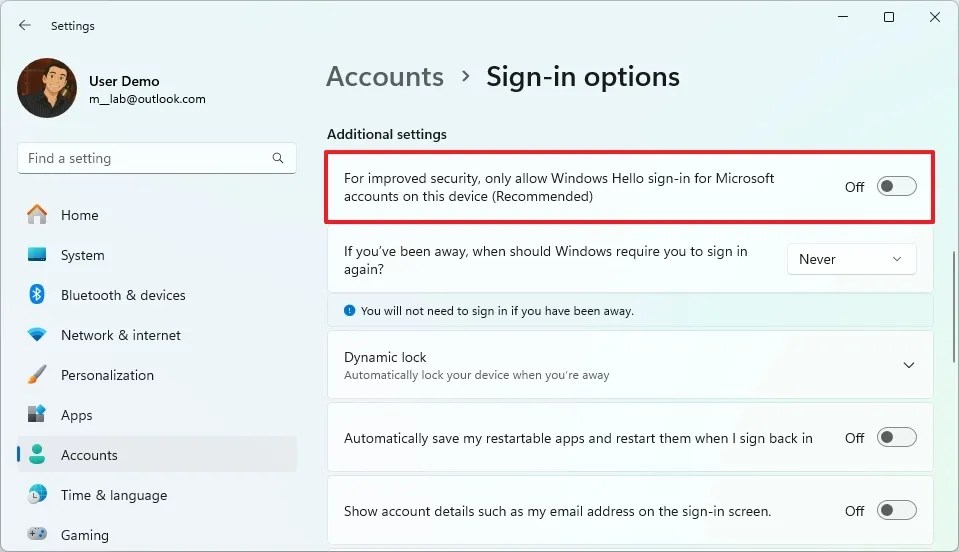
Toggle option within Windows 11 Settings to allow different sign-in methods. Image: Mauro Huculak
Restart your Settings app or your computer to apply the changes. After doing so, revisit the Sign-in options to see if the “Remove” button is now accessible.
Step 2: Disable Passwordless Microsoft Account
If the previous steps did not resolve the issue, you may need to disable the passwordless feature of your Microsoft account. To do this, follow these steps:
-
Open Settings.
-
Click on Accounts.
-
Select the Your info tab.
-
Click on Accounts under the “Related settings” section.

Managing your Microsoft account through Windows 11 Settings. Image: Mauro Huculak -
Select the Security tab.
-
Click “Manage how I sign in”.
-
Disable the Passwordless account option.

Managing security settings related to passwordless accounts in Microsoft Account. Image: Mauro Huculak -
Follow the prompts to complete the changes.
-
Restart your computer to finalize the adjustments.
After these steps, the option to remove the PIN should now be active and ready for use.
Update June 6, 2025: This guide has been refreshed to ensure all instructions are accurate and reflect any recent changes within Windows 11.
Frequently Asked Questions
1. What if the Remove PIN option is still grayed out after following the steps?
If the option remains grayed out, verify that all necessary changes to your Microsoft account are correctly set and that you have restarted your device. If issues persist, consider checking for any Windows updates that might address potential bugs.
2. Is removing the PIN a security risk?
Removing your PIN can impact security, as passwords may not offer the same level of convenience or local security. Always consider your security needs and the potential risks before making changes to your sign-in options.
3. How do I set up a new PIN if I change my mind?
You can easily set up a new PIN through the same Sign-in options by selecting Add a PIN after removing the old one. Follow the prompts to establish a new one at your convenience.
Related Articles:

How to Update Secure Boot Certificates on Windows 11 as Microsoft Replaces Expiring Ones – Complete Guide
17:42
Windows 11 26H1 KB5073097 (Build 28020.1371) Fixes Start Menu and File Explorer Issues (Canary)
12:43
Complete Guide to Uninstalling Apps with Revo Uninstaller on Windows 11
16:43
Leave a Reply