

Managing Microsoft Store App Updates on Windows 11
Last Updated: August 19, 2025
On Windows 11, applications downloaded from the Microsoft Store typically update automatically to ensure users have the latest features and security improvements. Nevertheless, there are circumstances where you may wish to disable these automatic updates, whether to conserve data usage or to manage compatibility with specific software versions.
This guide will walk you through the steps necessary to pause or resume app updates in the Microsoft Store, allowing you to maintain control over your applications’ update schedules.
How to Disable Microsoft Store App Updates
If you wish to pause app updates, follow these straightforward steps:
-
Launch the Microsoft Store application.
-
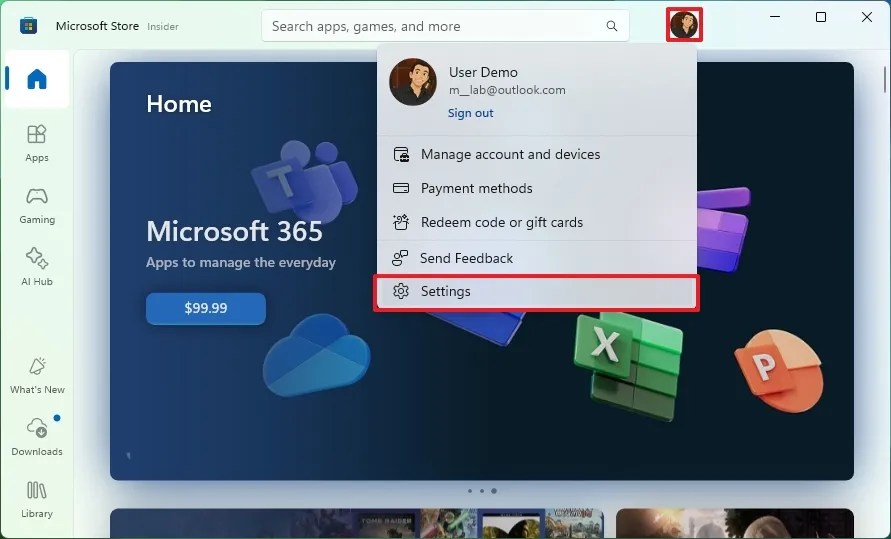
Select the Profile icon located in the top-right corner, then navigate to App settings.

-
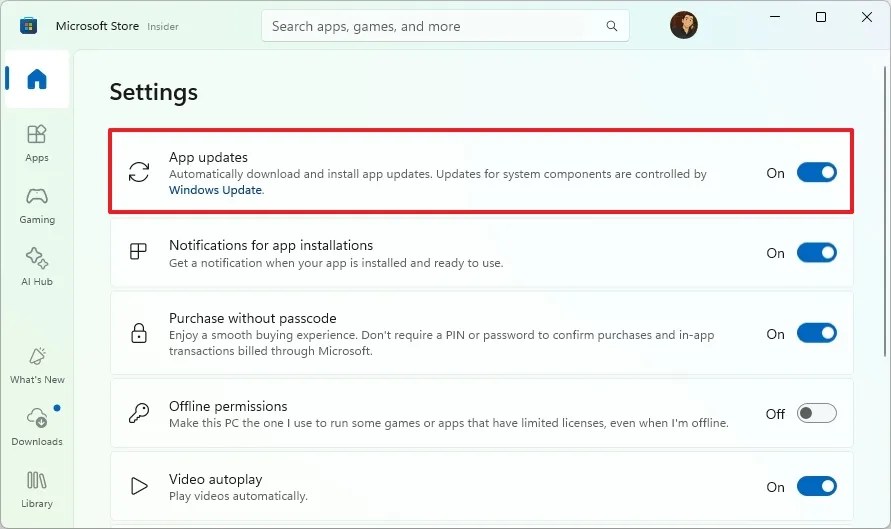
Toggle off the switch labeled App updates.

-
Select a pause duration for updates, which can range from 1 to 5 weeks.(Note: Permanent disabling of updates is no longer available).

-
Hit the Confirm button to finalize your selection.
Once these steps are completed, the apps downloaded from the Microsoft Store will not receive updates during the designated pause period.
Subscribe to My Newsletter Stay updated with the latest guides and news delivered directly to your inbox.
Subscribe
Even with automatic updates disabled, you can still manually download updates from the “Downloads” section within the Store. Keep in mind that this setting only applies to apps sourced from the Microsoft Store; applications like Chrome or Firefox, which were installed independently, will continue to receive updates as usual.
How to Enable Microsoft Store App Updates
-
Open the Microsoft Store.
-
Click on the Profile icon at the top-right and select App settings.
-
Activate the App updates toggle switch.
-
(Optional) Navigate to Downloads at the bottom left corner.
-
Press the Check for updates button to manually initiate an update check.
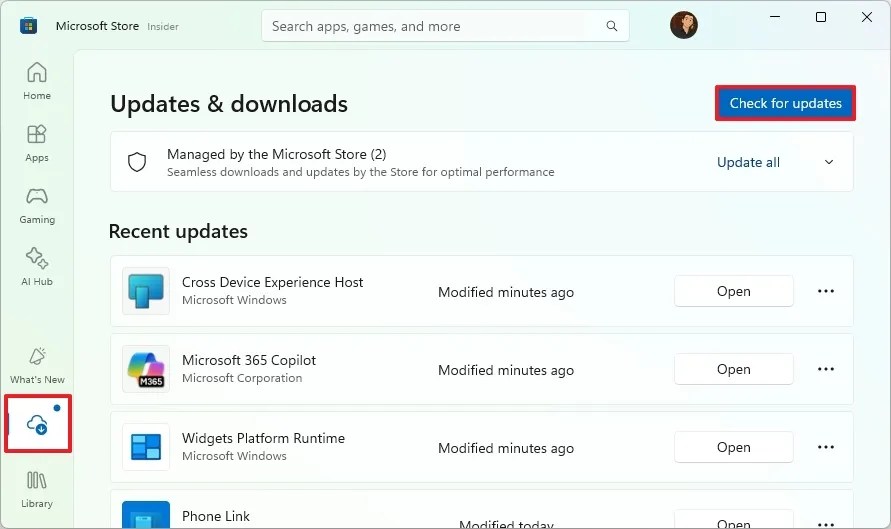
After completing these steps, your applications will once again start receiving updates from the Microsoft Store.
This guide has been revised as of August 19, 2025, to reflect the latest changes and ensure accurate instructions for managing app updates in Windows 11.
Related Articles:

How to Update Secure Boot Certificates on Windows 11 as Microsoft Replaces Expiring Ones – Complete Guide
17:42
Windows 11 26H1 KB5073097 (Build 28020.1371) Fixes Start Menu and File Explorer Issues (Canary)
12:43
Complete Guide to Uninstalling Apps with Revo Uninstaller on Windows 11
16:43
Leave a Reply